WhatsApp Template Approval for SMS, Text & WhatsApp in Salesforce
Your marketing team submits a WhatsApp template Tuesday morning. By Tuesday afternoon, Meta’s rejected it. Without visibility into rejection reasons, you resubmit blind and cycle for a week. With proper template management in Salesforce, you see the reason, fix the wording, and get approved on the second try.
Why WhatsApp Templates Work Differently When You Send Automated SMS Messages from Salesforce
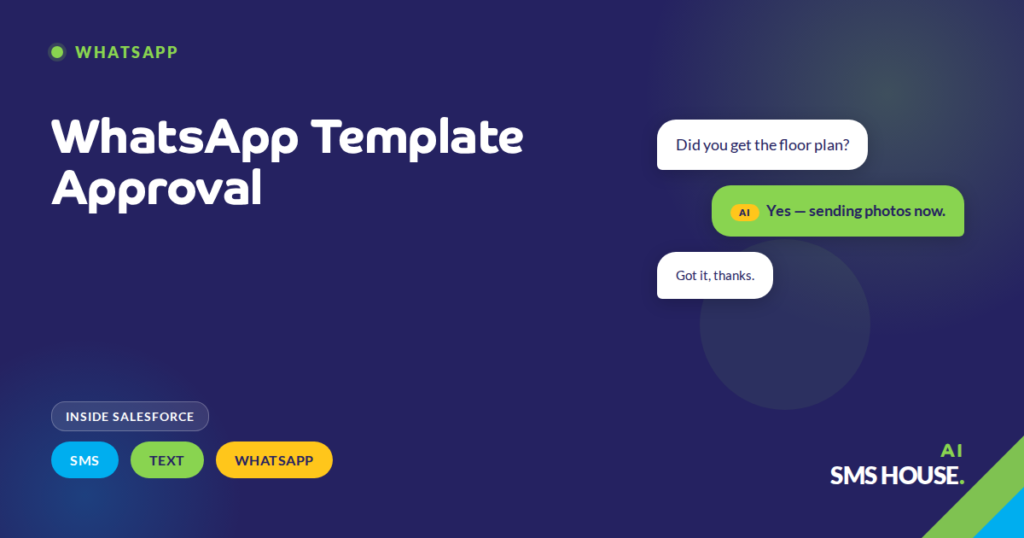
Your 24-hour free-form window opens once the customer replies, and you can send anything. Your starting every new conversation requires a template. Your template management becomes a workflow your marketing team owns.
The three template categories
Your business, Meta classifies templates into three categories with different approval criteria and pricing:
- Utility, order updates, appointment reminders, payment confirmations. Lowest price. Easier to approve.
- Authentication, OTPs, login codes. Lowest price. Specific formatting required.
- Marketing, promotions, offers, campaign messages. Highest price. Most scrutinised.
Your picking the right category matters. A “rate alert” for an existing mortgage customer is Utility (service to a current customer). A “rate alert” to a prospect who didn’t ask is Marketing. Misclassify and Meta rejects, or worse, approves and then sanctions your account when a customer complains.
Submitting and tracking templates from Salesforce
Your marketing team creates the template inside the Salesforce template library, picks the category, writes the content with merge field placeholders, and submits. AI SMS House forwards the submission to Meta and tracks the status on the Salesforce template record, Pending, Approved, Rejected, Paused.
Your approval usually returns in 10 minutes to 2 hours. Rejections come back with a reason code. Your template record shows the status and reason; your team iterates directly in Salesforce without switching to Meta Business Manager.
Common rejection reasons and how to avoid them
Your template rejections you’ll face cluster around predictable issues:
- Wrong category, promotional content submitted as Utility
- Template variables misaligned, placeholder text doesn’t match positional parameters
- Prohibited content, gambling, pharmaceuticals, financial claims without disclaimers
- Spammy wording, “Click here now!”, urgency language, ALL CAPS
- Missing sample values, Meta needs realistic example merge field values for approval
Your experienced admin teams like yours get 90%+ first-attempt approval by following the category rules strictly and keeping wording professional. New teams typically face 20-30% first-attempt rejection until they learn the patterns.
Templates in bulk sends and AI agent replies
Your approved templates feed two parts of the workflow. Bulk sends from Salesforce List Views or Campaigns require a template, your user picks from approved ones. Your Agentforce AI agent replies also respect the template library, the AI picks the right template for the context and merges the Salesforce record data.
Your library governs everything. Your marketing team controls voice and compliance. Sales, support, and AI agents use the approved templates. Nobody freestyles into a rejection or a penalty.