Send Automated WhatsApp Messages from Salesforce
When a customer needs an update, a quick WhatsApp message can often be more convenient than an email or phone call. But if your team has to check Salesforce, copy customer details and send each message separately, it can quickly become repetitive.
You can connect WhatsApp messaging with your Salesforce processes and automate messages around the events that matter to your business. AI SMS House helps you send WhatsApp messages from Salesforce while keeping the communication linked to your CRM records.
Send Automated WhatsApp Messages from Salesforce
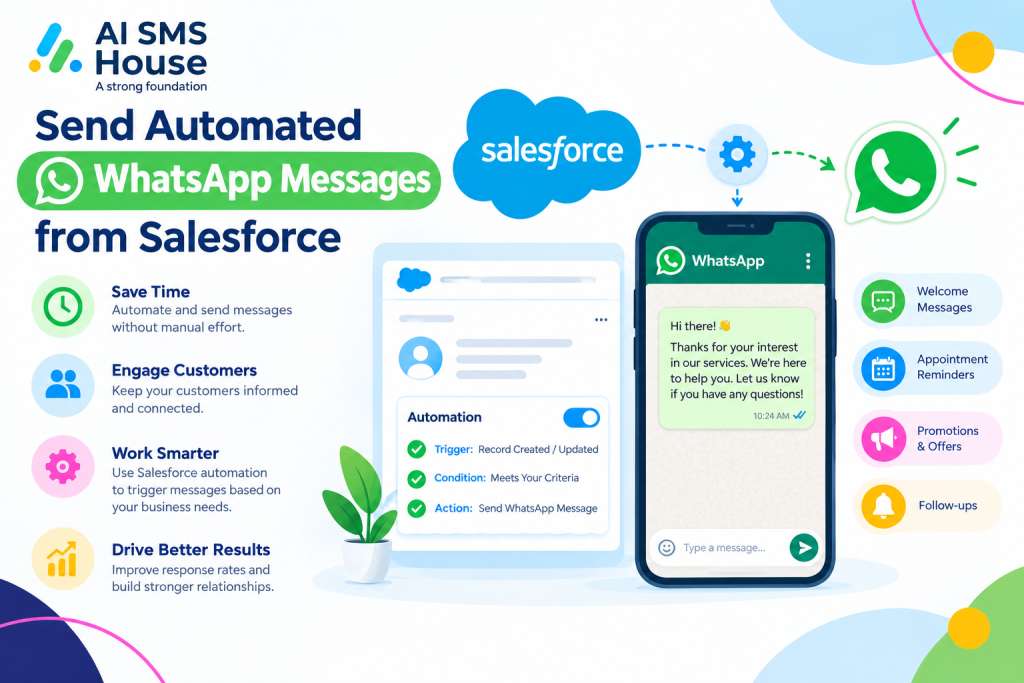
Automated WhatsApp messaging can help you contact customers at the right point in your process. You can trigger messages when a record is created, updated or reaches a particular stage.
You can use automation for:
1 New lead follow-ups after a lead is created
2 Appointment and meeting reminders
3 Order or service updates
4 Customer follow-ups
5 Payment reminders
6 Case and support notifications
7 Sales enquiries and lead qualification
8 Internal or customer-facing alerts
The exact automation can depend on how you have configured your Salesforce processes.
How to Send Automated WhatsApp Messages from Salesforce
The process can be kept simple. You first connect your WhatsApp messaging service with Salesforce and then decide when a message should be sent.
1. Connect WhatsApp with Salesforce
Set up your WhatsApp messaging connection within Salesforce. With AI SMS House, your messaging activity can be managed alongside your Salesforce records.
2. Choose the Salesforce Record
Decide which Salesforce records should receive messages. This could include Leads, Contacts, Accounts, Opportunities, Cases or custom objects.
3. Set Your Automation Trigger
Choose the event that should start the message. For example, you might send a WhatsApp message when:
1 A new Lead is created
2 An Opportunity changes stage
3 A Case is updated
4 An appointment field is changed
5 A specific Salesforce condition is met
4. Create Your WhatsApp Message
Write the message you want your customer to receive. You can use templates and Salesforce data to personalise the message where appropriate.
For example, you could include the customer’s name, appointment details or other information stored in Salesforce.
5. Test and Activate the Automation
Before making the automation live, test the trigger and message. Once everything works as expected, activate the process and monitor the messaging activity from Salesforce.
Application House provides Salesforce-focused solutions and can help businesses make better use of Salesforce automation and connected applications.
Automated WhatsApp Messages from Salesforce for Everyday Communication
Automation is particularly useful when you have repetitive messages to send. Rather than asking your team to remember every follow-up, you can build the communication into your Salesforce process.
Use AI SMS House with Salesforce
AI SMS House, from Application House, brings SMS, text and WhatsApp messaging into Salesforce. You can use it for manual conversations as well as automated messaging, helping your team manage customer communication from the Salesforce environment.
When you combine Salesforce automation with WhatsApp messaging, you can reduce repetitive manual work while making your customer communication part of the processes you already use.
If you want to explore the Salesforce messaging app, you can view AI SMS House on Salesforce AppExchange.