
View All Salesforce Text in Inbox
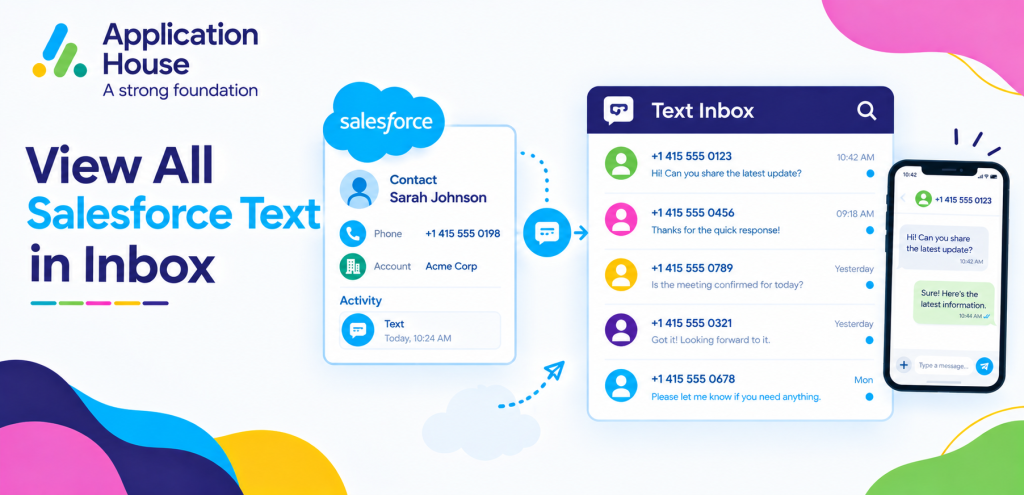
You can use your Salesforce Text Inbox as a working communication queue rather than treating every customer message as an isolated conversation.
You can organise your Text conversations according to the Salesforce records, dates and message sources that matter to your current workload.
You can keep your priority conversations pinned while you continue reviewing other Text activity across your organisation.
You can use your Inbox for mortgage, real estate, education, pharmacy and hospital communication while your conversations remain connected to Salesforce. Features_Messenger_App
Organise Your Salesforce Text Inbox with Filters and Pinned Conversations
You can use your Inbox filters to reduce a large messaging workload into the conversations relevant to the work you are doing now.
You can filter your conversations by channel, Salesforce object, date period and outgoing message source. Features_Messenger_App
You can pin your conversation when your user needs to keep working on it across several actions or customer responses. Features_Messenger_App
You can combine your filters and pinned conversations to turn your Inbox into a more focused working view.
Focus Your Inbox on Text Conversations
You can select your Text channel when your current responsibility is customer Text communication.
You can remove your other messaging channels from your immediate view while you concentrate on your Text workload.
You can switch your view again whenever your work moves to another messaging channel.
Narrow Your Text Work by Salesforce Object
You can select your Salesforce object when your users need to work on one type of customer process at a time.
You can focus your view on the records relevant to your sales, admissions, property or healthcare activity.
You can use your object filter to separate different business workloads without creating separate messaging systems.
Keep Your Active Conversation Pinned
You can pin your conversation when your customer issue or enquiry requires several actions before your work is complete.
You can continue working elsewhere while your pinned conversation remains easier for you to return to.
You can use your pinned area for your conversations that are still active rather than relying on your memory to find them later.
Separate Your Text Conversations by How They Were Sent
You can use your message source information to distinguish between different types of outgoing Text communication.
You can identify your one to one messages, your Send Message activity, your automated communication and your bulk messaging activity. Features_Messenger_App
You can use your source information when you need to understand why your customer received a particular message.
You can make your review more useful when your organisation sends Text through several Salesforce processes.
Review Your One to One Text Conversations
You can focus on your individual customer conversations when your users need to respond personally.
You can use your message source to distinguish your direct communication from your automated or bulk activity.
You can give your users a clearer view of the conversations where your personal attention matters most.
Review Your Automated Text Activity
You can identify your Text conversations that originated from your automation when your users need to understand the communication already sent.
You can review your customer response with the knowledge that your previous message came from an automated Salesforce process .
You can make your human follow up more informed because you can see how your conversation began.
Review Your Bulk Text Responses
You can distinguish your Text activity created through your bulk messaging process from your individual conversations.
You can use your Inbox to review customer responses after your wider outreach.
You can move your customer from your bulk communication into a more individual conversation when your response requires personal attention.
Use Your Text Inbox as a Daily Work Queue
You can use your date filtering to organise your Text workload around the period your users need to review.
You can focus your users on your newest conversations first or return to older activity when your process requires another review. Features_Messenger_App
You can combine your date view with your Salesforce object and source filters when your organisation handles a high volume of Text conversations.
Review Your New Text Activity First
You can start your day by focusing on the Text conversations that have recently entered your Inbox.
You can identify your customer responses that may need your immediate attention before moving to older work.
You can make your daily message review more structured instead of opening conversations without a clear order.
Return to Your Earlier Text Conversations
You can use your date filtering when your process requires you to revisit conversations from an earlier period.
You can find your earlier customer communication without searching through every conversation in your Inbox.
You can combine your earlier date period with your Salesforce object filter to make your review more specific.
Manage Mortgage Text Workloads from Your Inbox
You can organise your mortgage Text communication around the Salesforce records that represent your borrower journey.
You can use your Inbox to separate your active borrower conversations from your automated and bulk mortgage communication.
You can pin your mortgage conversation when your adviser needs to complete another action before your borrower journey can continue.
Review Mortgage Renewal Conversations
You can use your Inbox when your existing customers respond to your mortgage renewal or refinancing communication.
You can keep your interested borrower conversation pinned while your adviser reviews your Salesforce information.
You can separate your individual responses from your wider renewal outreach by using your message source information.
Prioritise Mortgage Offer and Valuation Updates
You can keep your borrower Text conversation visible when your application reaches an important offer or valuation stage.
You can use your Salesforce object filter to concentrate on the mortgage records your advisers need to review.
You can return to your pinned borrower conversation after your adviser checks your related application information.
Manage Real Estate Text Workloads from Your Inbox
You can use your Text Inbox to organise conversations from your buyers, sellers, tenants and landlords.
You can separate your different property processes by filtering your Salesforce objects instead of treating every Text conversation as the same type of enquiry.
You can keep your high priority property conversations pinned while your users work through your wider customer activity.
Review Buyer Offer Responses
You can use your Inbox when your buyer responds about an offer or needs another conversation with your property user.
You can pin your active buyer conversation while your user reviews your Salesforce property information.
You can use your message source information to distinguish your personal negotiation conversation from your earlier bulk property communication.
Manage Seller and Landlord Communication
You can filter your Salesforce records when your users need to focus specifically on your seller or landlord conversations.
You can keep your active instructions or questions pinned while your user works on the related property process.
You can make your Text Inbox reflect the different customer relationships your real estate organisation manages.
Organise Education Text Communication by Student Process
You can use your Salesforce Text Inbox to separate your recruitment, admissions and ongoing student communication.
You can use your Salesforce object filters to focus your users on the student process they are responsible for.
You can pin your student conversation when your applicant requires another admissions action before your process can continue.
Review Enrolment and Interview Responses
You can use your Inbox when your applicant responds to your enrolment or interview communication.
You can keep your active applicant conversation pinned while your admissions user checks your Salesforce application information.
You can use your date filters when your admissions users need to concentrate on responses received around a particular recruitment period.
Separate Recruitment Text from Student Communication
You can use your Salesforce objects to distinguish your prospective student conversations from your communication with your existing students.
You can make your Inbox more relevant to your user by showing the type of records connected to their responsibility.
You can avoid mixing your different education workloads into one undifferentiated message queue.
Organise Pharmacy Text Conversations by Customer Need
You can use your Text Inbox to separate your pharmacy customer enquiries from your routine notification activity.
You can use your source information to understand whether your customer is responding to your individual message, your automation or your wider communication.
You can keep your conversation pinned when your authorised user needs to investigate or complete another service action.
Review Responses to Pharmacy Service Messages
You can use your Inbox when your customer responds to communication about your pharmacy service.
You can keep your response accessible while your authorised user checks your related Salesforce information.
You can move your conversation from routine communication into your personal follow up when your customer needs additional help.
Prioritise Pharmacy Enquiries Requiring Review
You can pin your customer conversation when your authorised user cannot complete your enquiry immediately.
You can continue reviewing your other Text activity while your priority conversation remains easier for you to return to.
You can use your Inbox as your communication workspace while your Salesforce record provides your wider customer context.
Organise Hospital Text Communication by Operational Workload
You can use your Text Inbox to organise your hospital communication according to your Salesforce process and your authorised user responsibilities.
You can separate your routine messages from your conversations that require your user to review or respond.
You can use your filters to keep your authorised users focused on the patient related communication relevant to their current work.
Review Appointment Change Responses
You can use your Inbox when your patient responds to an appointment change or scheduling communication.
You can keep your conversation pinned while your authorised user reviews your appointment information.
You can return to your conversation after your user completes the Salesforce action required by your process.
Manage Administrative Hospital Follow Up
You can use your Inbox for your administrative patient communication when your message requires another authorised action.
You can use your Salesforce object filter to keep your user focused on the records connected to their responsibility.
You can keep your priority conversation visible until your administrative follow up has been completed.
Keep Your Priority Text Conversations Visible Until Your Work Is Complete
You can use your pinned conversations as a temporary working area for the Text interactions that still need your attention.
You can remove your dependence on searching your full Inbox whenever you return to an unfinished customer conversation.
You can combine your pinned conversations with your object, date and source filters to create a Text workspace that reflects your current responsibilities.
You can keep your mortgage, real estate, education, pharmacy and hospital Text communication organised around the work your users actually need to complete.