
Automatically Find Any Salesforce Record for Incoming Text
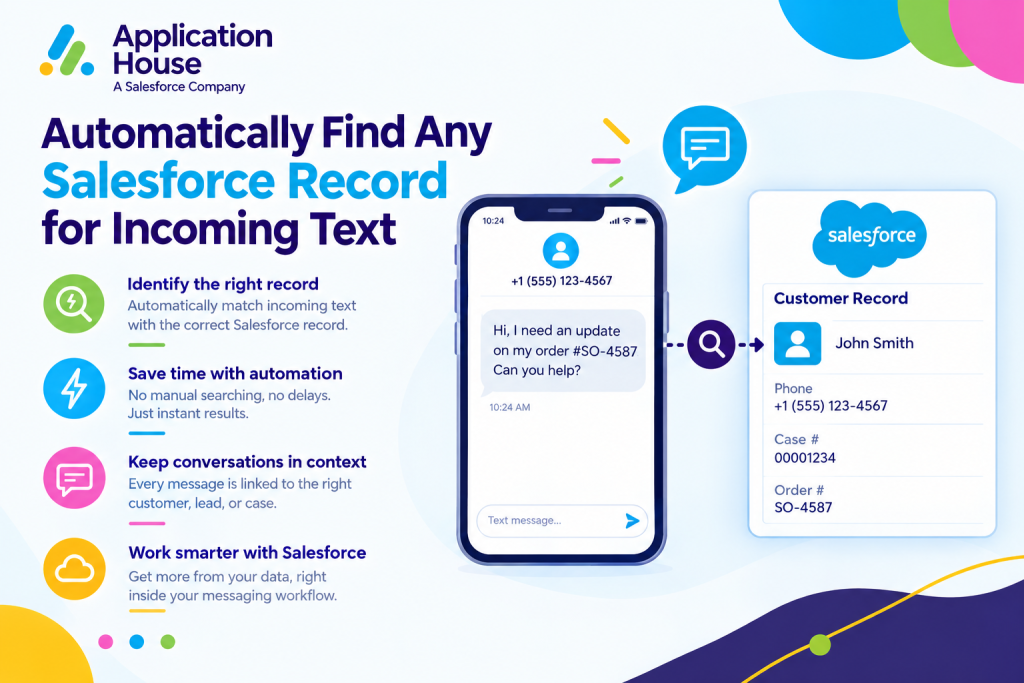
You can turn your incoming Text conversations into organised Salesforce activity without asking your users to search for the correct record manually.
You can decide whether your incoming Text should find an existing record, create a new record or first look for a match and create your record only when nothing suitable is found.
You can configure your Record Management around the objects, fields, ownership and business processes your organisation already uses. Pasted text
You can keep your incoming customer enquiries connected to Salesforce from the moment your customer replies.
Turn New Incoming Text Enquiries into Salesforce Records
You can use your incoming Text as the starting point for a new Salesforce record with an Agentforce AI Agent
when your customer is not already represented in your chosen business process.
You can configure your application to create the Salesforce object that fits your enquiry instead of requiring your user to create your record manually.
You can decide how your new record should be populated, which Salesforce fields your application should update, and who in your organisation should own it.
Create Your New Record When No Match Exists
You can use your Match or Create option when you want your application to search for an existing Salesforce record before creating a new one.
You can keep your existing customer data connected when your match is found and create your new record when your required match does not exist.
You can use your configuration to make new Text enquiries part of your Salesforce process automatically.
Assign Your New Record to the Right Salesforce User
You can choose your new record owner when your Record Management configuration creates a Salesforce record. Pasted text
You can direct your new enquiry to the user responsible for handling that type of customer or business process.
You can reduce your manual assignment work by making ownership part of your incoming Text configuration.
Map Your Incoming Information to Salesforce Fields
You can configure your field mappings for the Salesforce records your application creates.
You can decide which Salesforce fields should receive the information required by your record creation process. Pasted text
You can keep your newly created records aligned with the data structure your users already rely on.
Choose How Your Incoming Text Should Be Managed
You can choose the Record Management behaviour that fits your business process instead of applying the same rule to every incoming Text.
You can use Match Only, Create Only, Match or Create, or None depending on how you want your conversation handled.
You can configure different approaches when your customer journeys require different Salesforce outcomes.
Match Your Text to an Existing Salesforce Record
You can use Match Only when you want your incoming Text to connect only to a Salesforce record that already exists.
You can define your matching fields so your application knows what information it should use to find your record.
You can keep your existing customer history together when your customer is already represented in Salesforce.
Create a New Salesforce Record for Every New Enquiry
You can use Create Only when your business process requires your incoming Text to generate a new Salesforce record.
You can choose your Salesforce object and your new record owner as part of your configuration.
You can use this approach when every new enquiry should enter your Salesforce process as a separate record.
Match First and Create When No Record Is Found
You can use Match or Create when you want your application to protect your existing customer relationship while still capturing new enquiries.
You can let your application search for your existing Salesforce record first and create your new record only when your required match is unavailable.
You can reduce unnecessary record creation while keeping new customer enquiries from being lost.
Manage Student Text Enquiries Across Salesforce Education Records
You can use incoming Text Record Management throughout your student recruitment and admissions processes.
You can connect your prospective student responses to existing enquiry or application records and create new Salesforce records when your student contacts you for the first time.
You can keep your admissions users focused on the student journey instead of asking them to identify and create records manually.
Match Applicant Replies to Existing Student Records
You can match your applicant reply to the Salesforce record where your admissions users already manage your student.
You can connect your application questions, deadline responses and admissions communication to your existing student context.
You can give your admissions users immediate access to your previous record information when your student replies.
Create Enquiry Records for Prospective Students
You can create your new enquiry record when your prospective student sends a Text and your matching process cannot find an existing record.
You can assign your new enquiry to the Salesforce user responsible for your recruitment process.
You can capture your prospective student inside Salesforce without requiring your admissions user to manually recreate the enquiry.
Connect Admissions Responses to Application Records
You can connect your incoming Text to your application record when your student is responding about documents, application progress or an admissions requirement.
You can keep your communication alongside the Salesforce record where your application process is managed.
You can help your users understand which application your incoming response relates to before they continue your conversation.
Organise Real Estate Text Enquiries by Customer and Property Process
You can use your incoming Text Record Management when buyers, tenants, sellers or landlords respond to your property communication.
You can connect your customer reply to your existing Salesforce record or create your new enquiry when your customer is contacting you for the first time.
You can configure your process around the property and customer records your real estate organisation already uses.
Match Buyer Replies to Existing Leads or Contacts
You can match your buyer or tenant response to an existing Lead, Contact or other Salesforce record.
You can keep your customer conversation connected to the relationship your property users already manage.
You can reduce your need to search Salesforce manually each time your customer responds to a viewing or property message.
Create New Records from Property Enquiries
You can create your new Salesforce record when your incoming Text represents a new property enquiry.
You can configure your field mappings and record owner around the way your property organisation handles new opportunities.
You can move your new customer into your Salesforce process as soon as your incoming enquiry arrives.
Connect Viewing Responses to Your Salesforce Records
You can connect your viewing confirmation, cancellation or rescheduling response to the Salesforce record your users are already working with.
You can keep your property communication and customer context together when your buyer responds.
You can help your property users continue your conversation without first determining where the reply belongs.
Use Different Record Management Rules for Your Business Numbers
With Application House, you can configure your Record Management against the business phone number your organisation uses for incoming messages.
You can create multiple Record Management configurations when your different numbers serve different departments or customer journeys.
You can keep your incoming Text handling aligned with the reason each business number exists, so your messages are managed against the right Salesforce records.
Apply Different Rules to Different Text Numbers
You can use one business number for your sales enquiries and another number for your service or operational communication.
You can give each number the Record Management configuration that matches your business process.
You can avoid forcing your entire organisation to use one matching or record creation rule.
Use Different Salesforce Objects for Different Business Processes
You can connect one incoming Text process to your Leads while another process uses your Cases, Opportunities or custom objects.
You can choose the Salesforce object that represents the work your users need to perform after your message arrives.
You can make your incoming Text handling reflect your Salesforce architecture rather than designing your Salesforce architecture around your messaging application.
Control Your Record Management by Phone Number
You can associate your Record Management configuration with the phone number used for your incoming communication.
You can create multiple configurations for your number when your business requires different handling rules. Pasted text
You can keep your routing decisions configurable as your organisation grows or your messaging processes change.
Hold New Text Conversations Until You Know Where They Belong
You can keep your incoming Text conversation available even when you do not want your application to immediately select or create a Salesforce record.
You can use your None Record Management option when your user needs more information before deciding where your conversation belongs. Pasted text
You can avoid creating an incorrect relationship between your customer conversation and your Salesforce data.
Keep Your Conversation Independent from a Salesforce Record
You can allow your incoming Text to create your conversation without immediately attaching it to a Salesforce record.
You can keep your customer’s message visible while your user reviews the enquiry and determines the appropriate next step.
You can use this approach when your first incoming message does not contain enough information to identify your customer confidently.
Let Your User Review the Enquiry Before Creating a Record
You can let your Salesforce user review your new Text conversation before choosing the Salesforce record it should use.
You can give your user the flexibility to create or connect the appropriate record after your customer provides more information.
You can keep the power in your hands by deciding when your automation should manage your record and when your user should make the final decision.